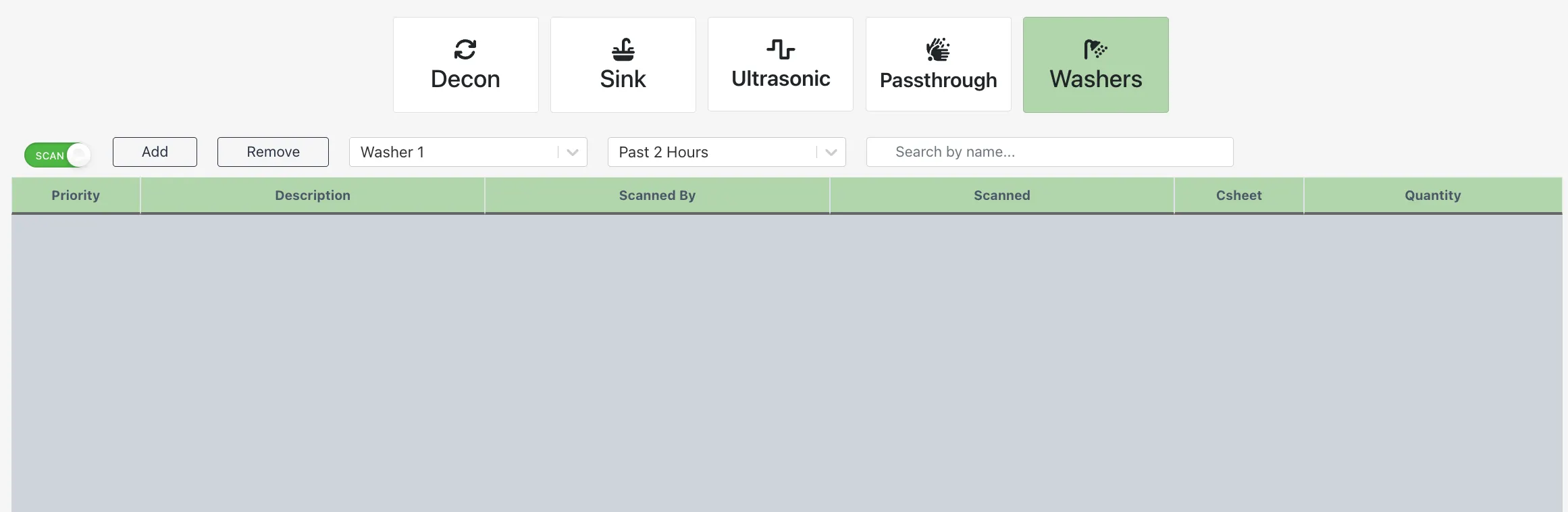
When utilizing the Decon Module, some facilities have opted for more insight into where each item is and when it is scanned to specific locations. Please note: This module can be fully customized to meet the needs of your facility. Please reach out to your supervisor or your CSM for any updates needed!
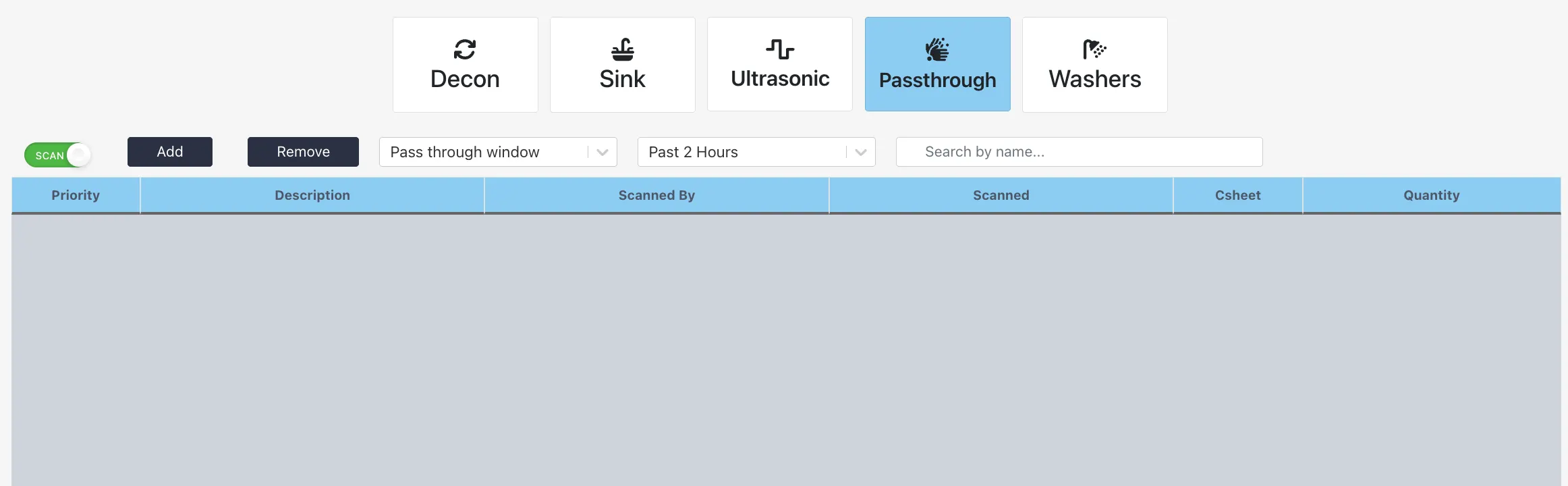
Decon Section Headers
Decon Section Headers

Decon
Staff can select the Decon section header and scan any item into decontamination. When the Scan button is on (green), you may scan a permanent or production label to add it to decon.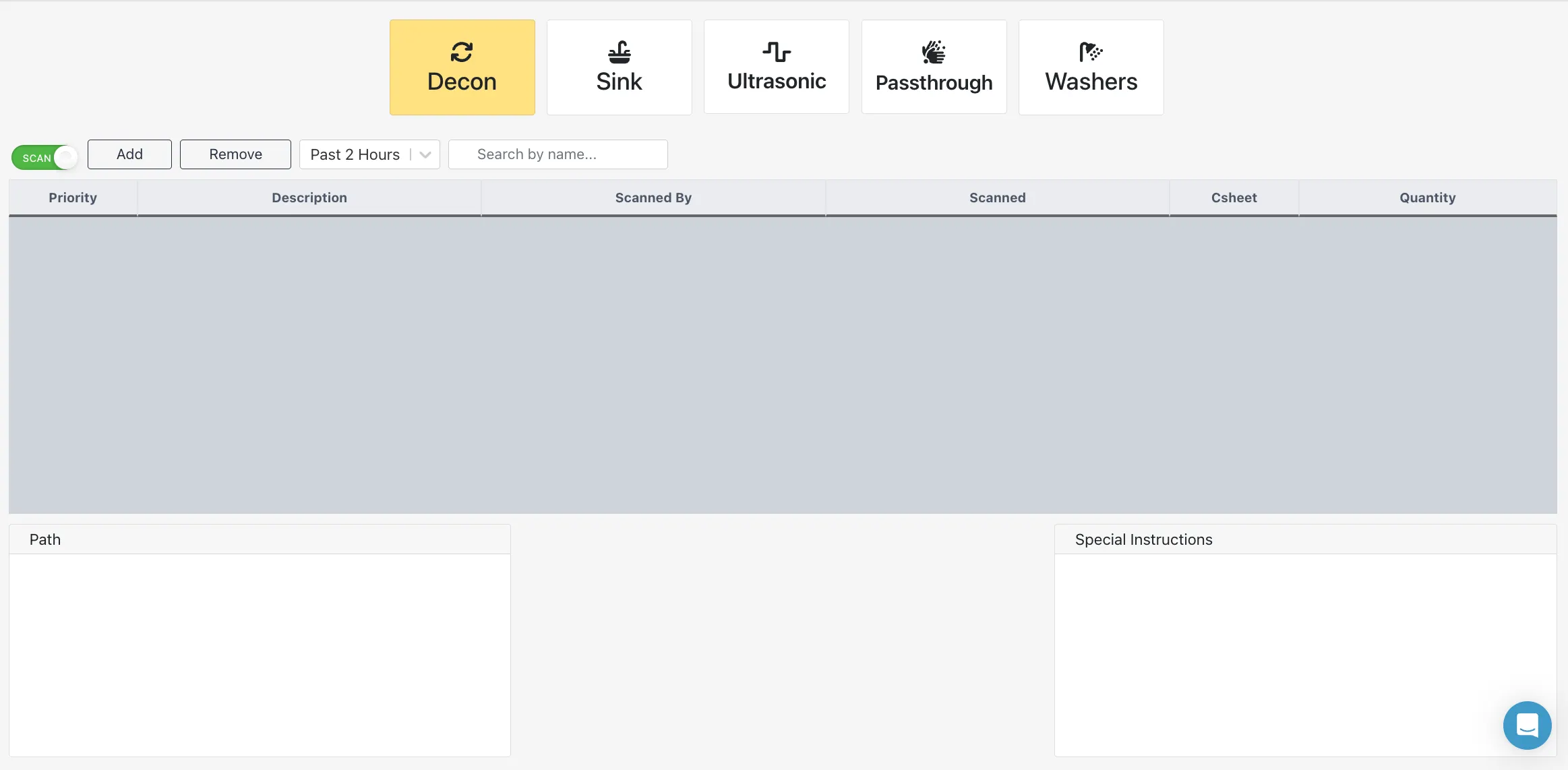
Sink
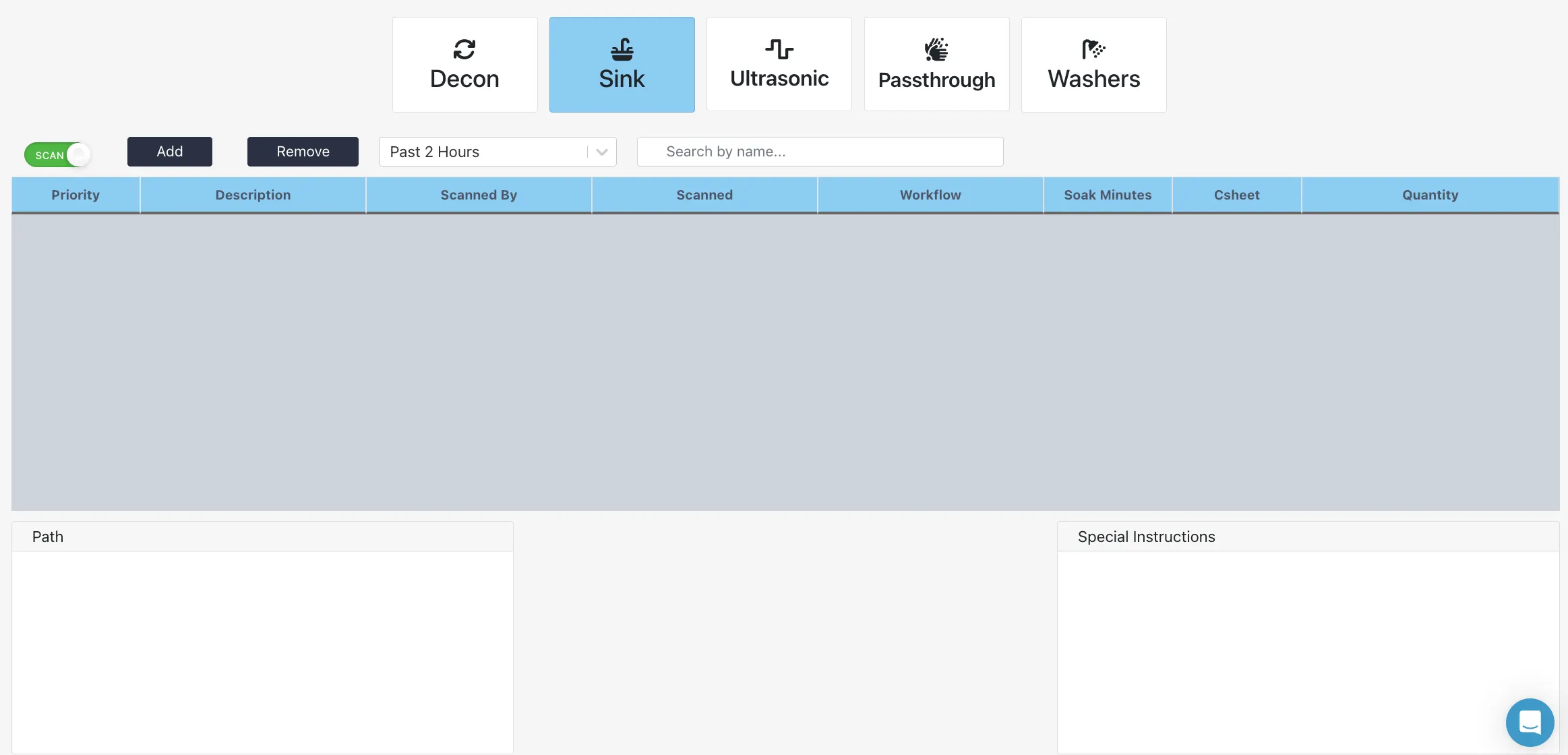
Staff can select or scan the Sink barcode to enter this area of the Decon Module. In this module, staff can view any sink workflows associated with the item, recommended Soak Minutes, or the count sheet if needed. When the Scan button is on (green), you may scan a permanent or production label to add it to the sink.
Ultrasonic
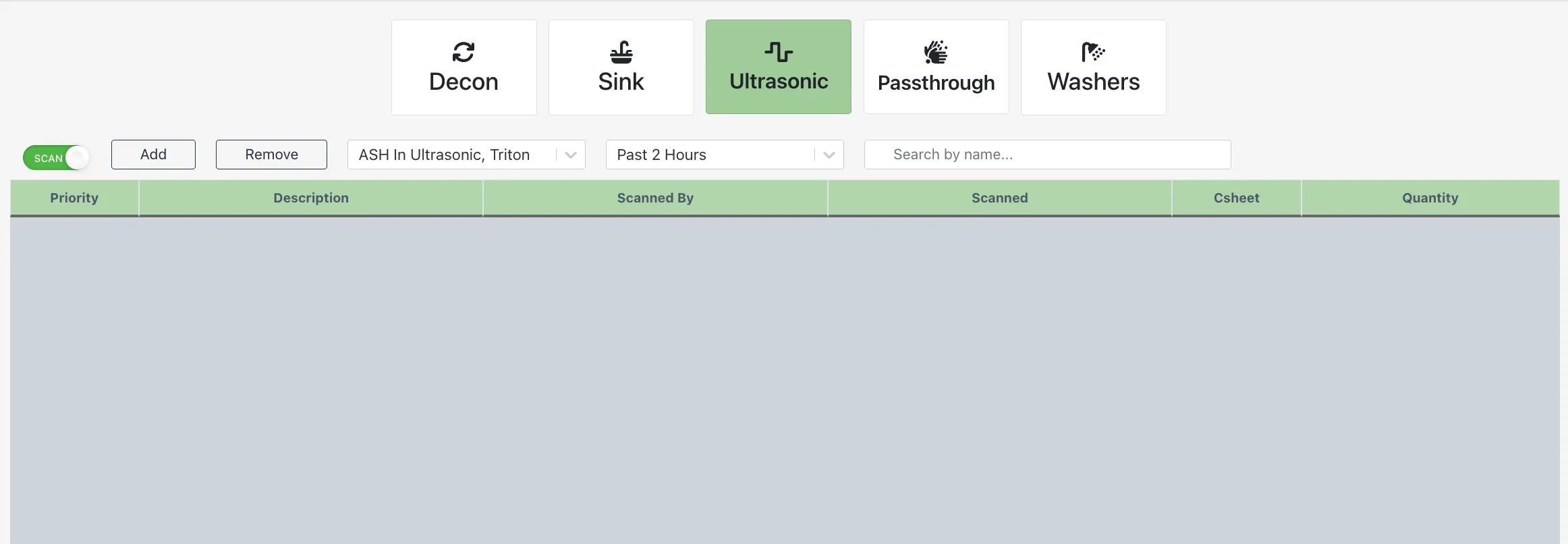
Staff can select or scan the Ultrasonic barcode to enter this area of the Decon Module. When the Scan button is on (green), you may scan a permanent or production label to add it to the ultrasonic.
Passthrough
Staff can select or scan the Passthrough barcode to enter this area of the Decon Module. When the Scan button is on (green), you may scan a permanent or production label to add it to the Passthrough Window.
Washers
Staff can select or scan the Washer barcode to enter this area of the Decon Module. A washer can be specified by utilizing the washer drop-down, or by scanning the washer-specific barcode on each of your washers. When the Scan button is on (green), you may scan a permanent or production label to add it to the desired Washer.